Full Scan
⚠️ Legacy documentation
This article describes a feature of the earlier version of Vooki. Vooki Pro does not include this feature. The article is kept for reference only. For current guides, see the Vooki Pro documentation.
Full scan performs a deep scan on your web application. It checks all the pages of the target web application, detects complex login mechanisms, and scans the pages behind the authorization for vulnerabilities. This scan is highly recommended for your website.
How to use?
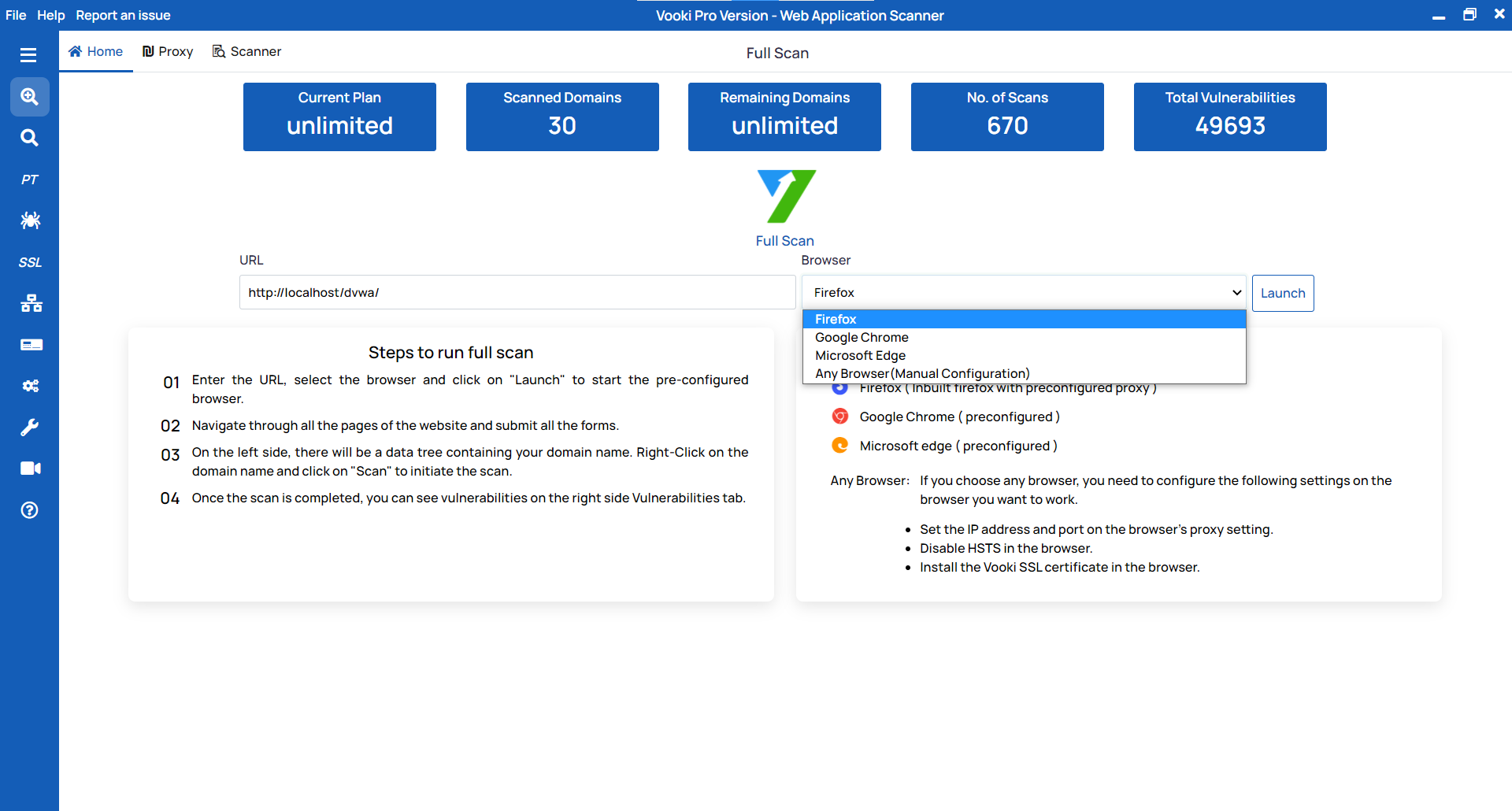
- Choose "Full Scan" from the left navigation bar.
- Enter the URL that you want to scan.
- Choose the browser of your choice from the list.
- You can also choose the Any Browser(Manual Configuration) to connect the browser with manual configuration. Choosing this option will not open any browser. It will only open the proxy port.
- Enter the PORT and click on
Launch - After the browser is launched, crawl all the pages of the website and interact with all input of the pages.
Scanning
To start the scan, follow these steps:
- After the crawling of pages is done, right-click on the left tree node (on your host) and click
Scan. - With the click of the scan, you will get a pop-up window; fill out all of the fields.
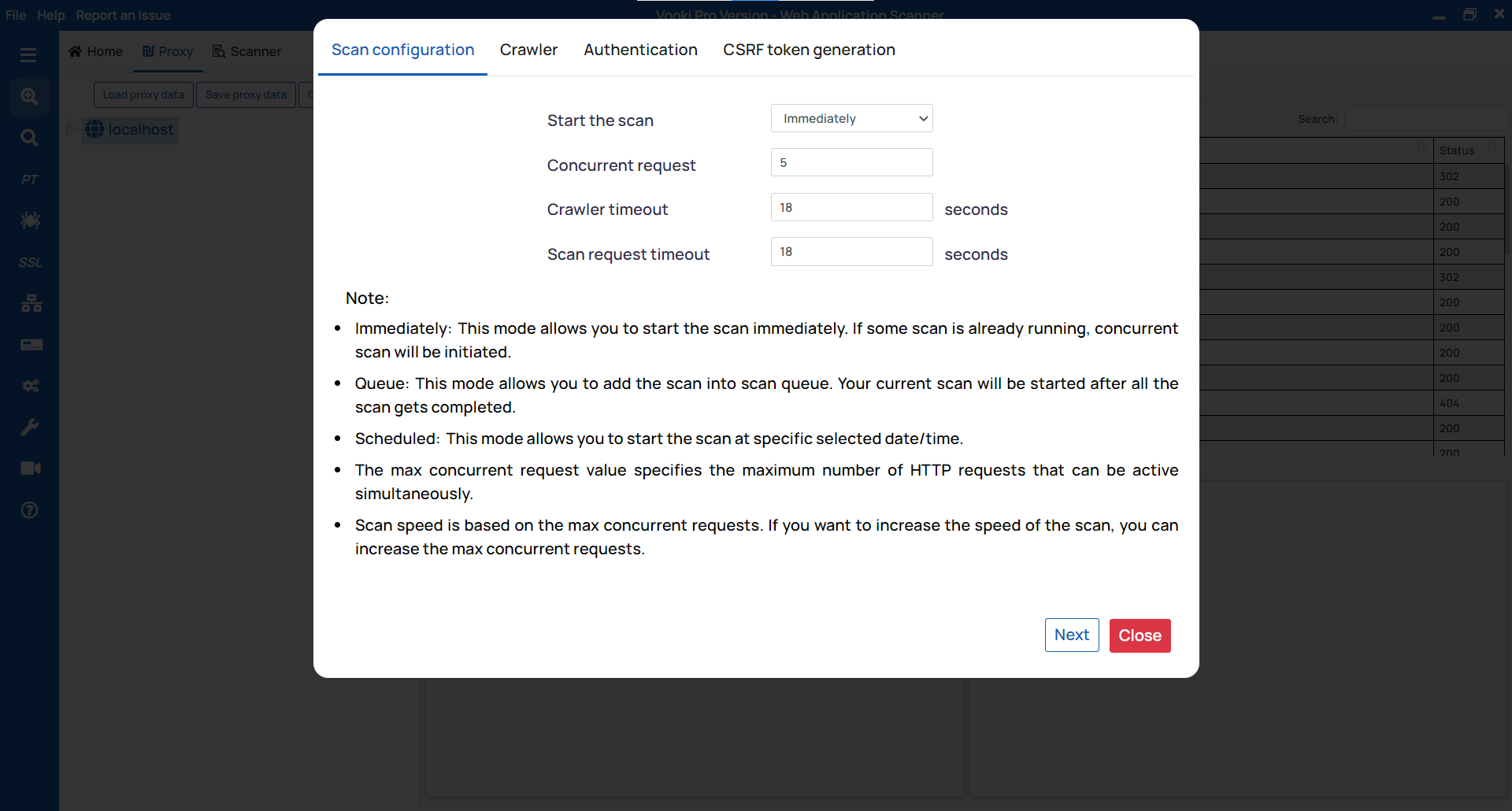
- Scan Configuration
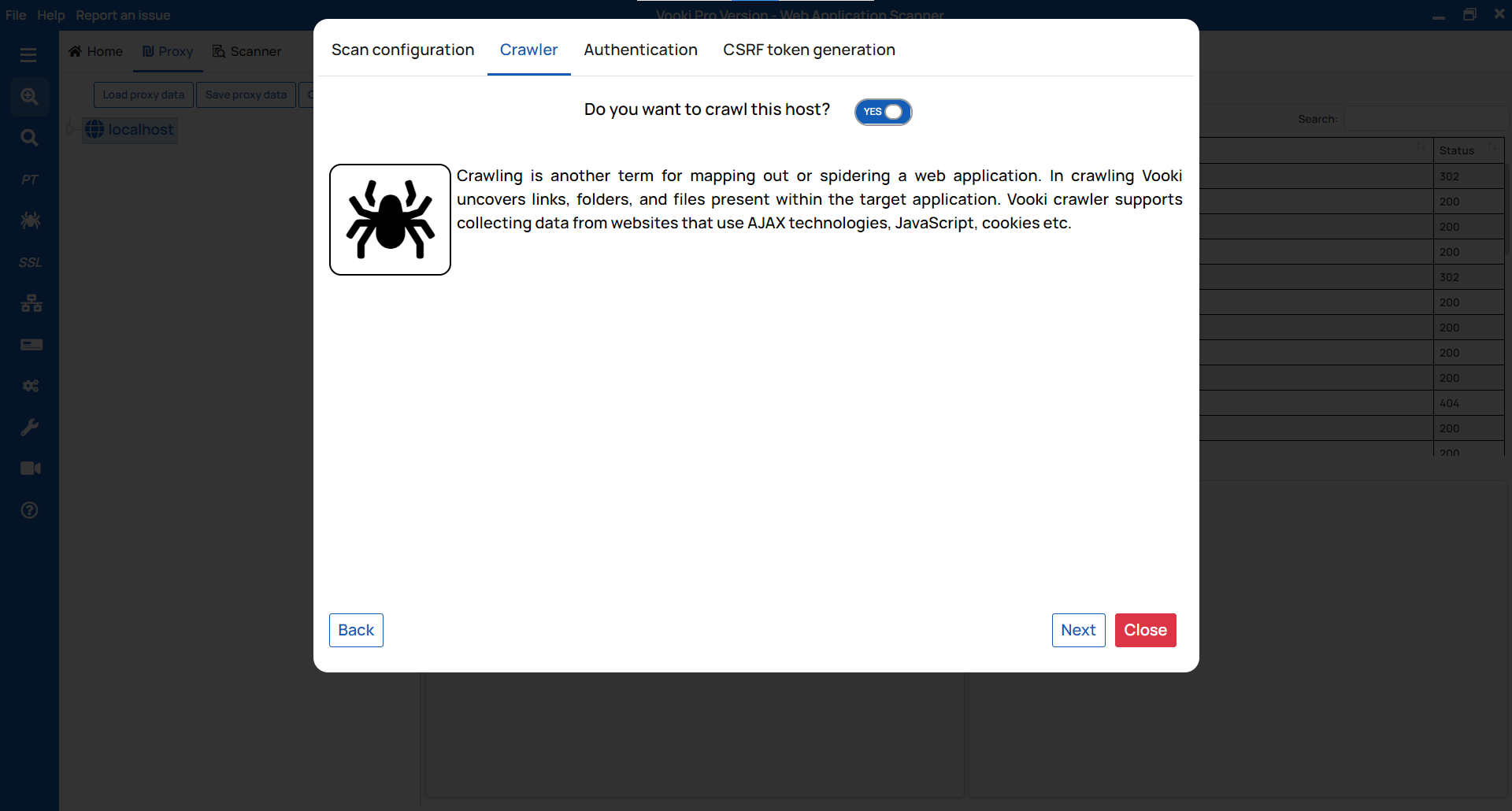
- Crawler
- Authentication
- CSRF token generation
Scan Configuration: Concurrent Request allows you to send the number of parallel requests; Web Crawler Timeout allows you to set the timeout for the crawling request; Scan Request Timeout allows you to set the timeout for the scan.
Crawler: If you click on yes, then it will start crawling the website. Our crawling mechanism performs in-depth scanning of your website. You can identify the webpages exposed on the website.
Authentication: For authentication, we have several modes, which are as follows:
- Fetch session cookie from proxy.
- Manually enter session cookie.
- Simple form authentication.
- Complex authentication
CSRF token generation: This module is for bypassing the CSRF token. If the website you're scanning has a CSRF, enter the token key and value and click "Check & Save" before clicking Scan. If a CSRF check is not available, click on "
Skip & Scan."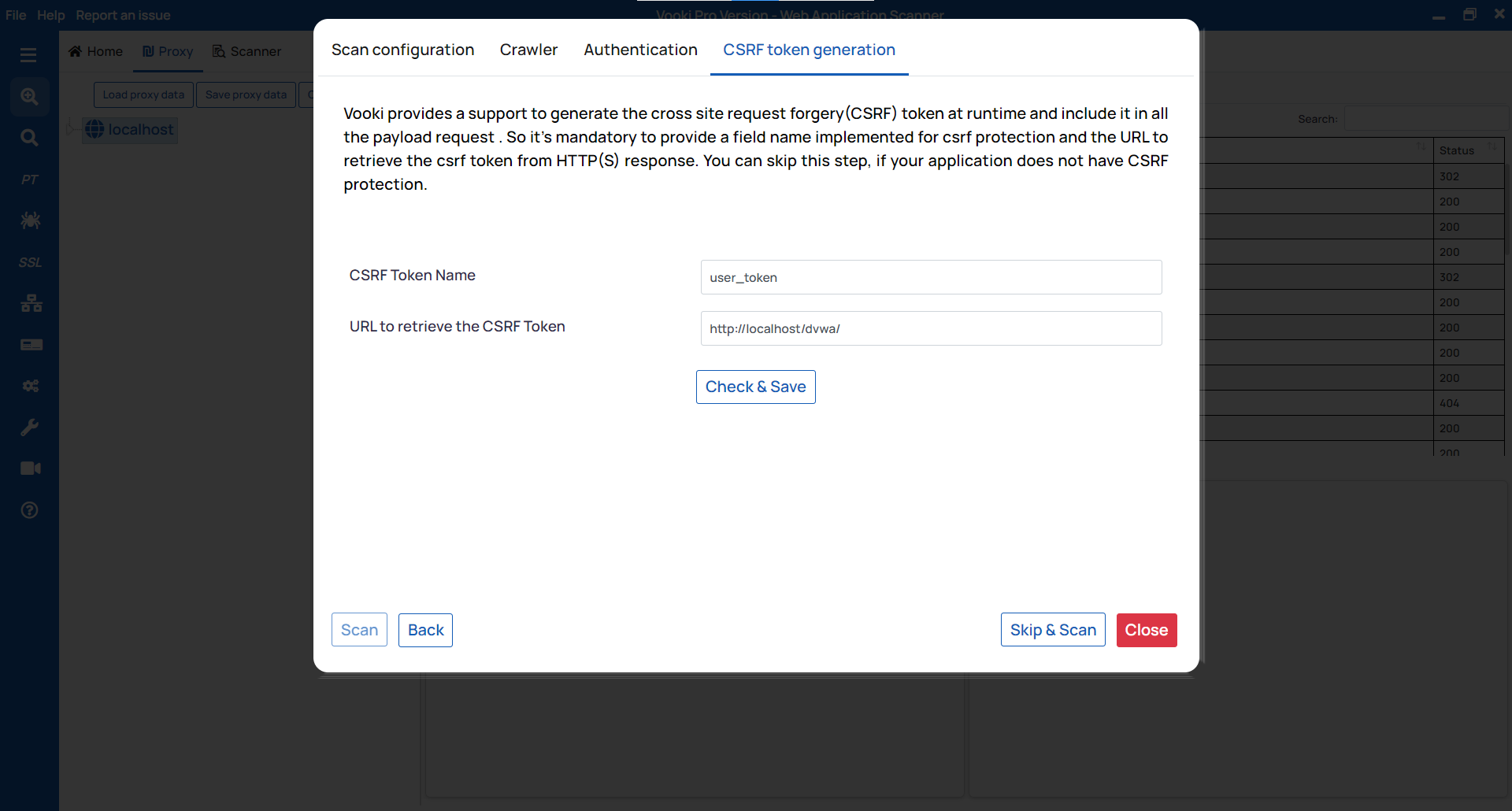
When the scan is finished, you can view the scanned app's full details in the scanner tab. You can generate the report and save the data externally.
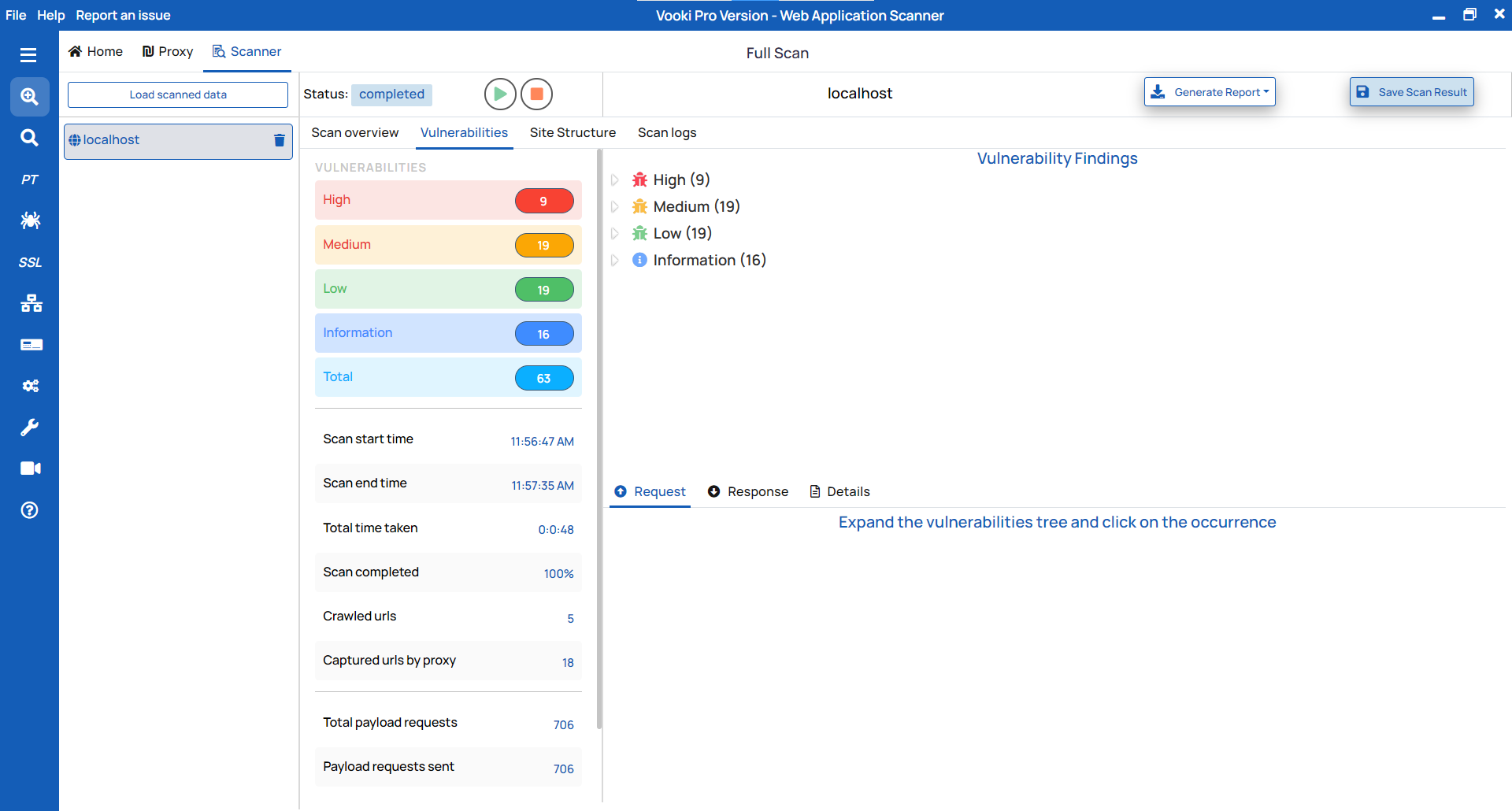
Report Generation:
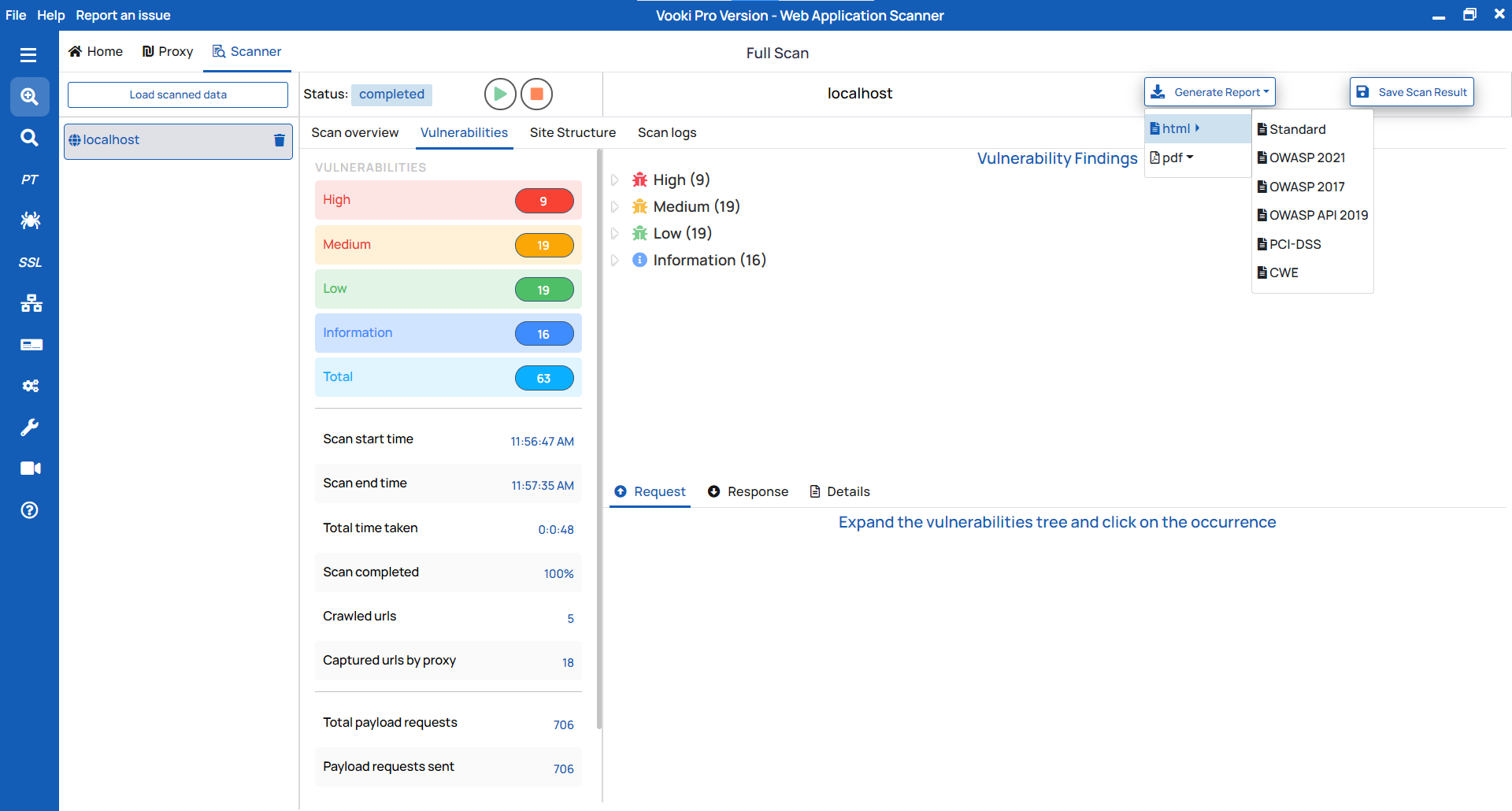
To generate the report, follow these steps:
- Click on "
Generate Report" in the scanner tab and choose the report type based on your needs. - This will generate the report in HTML/PDF format.
- Save the file in your preferred location.
Save externally
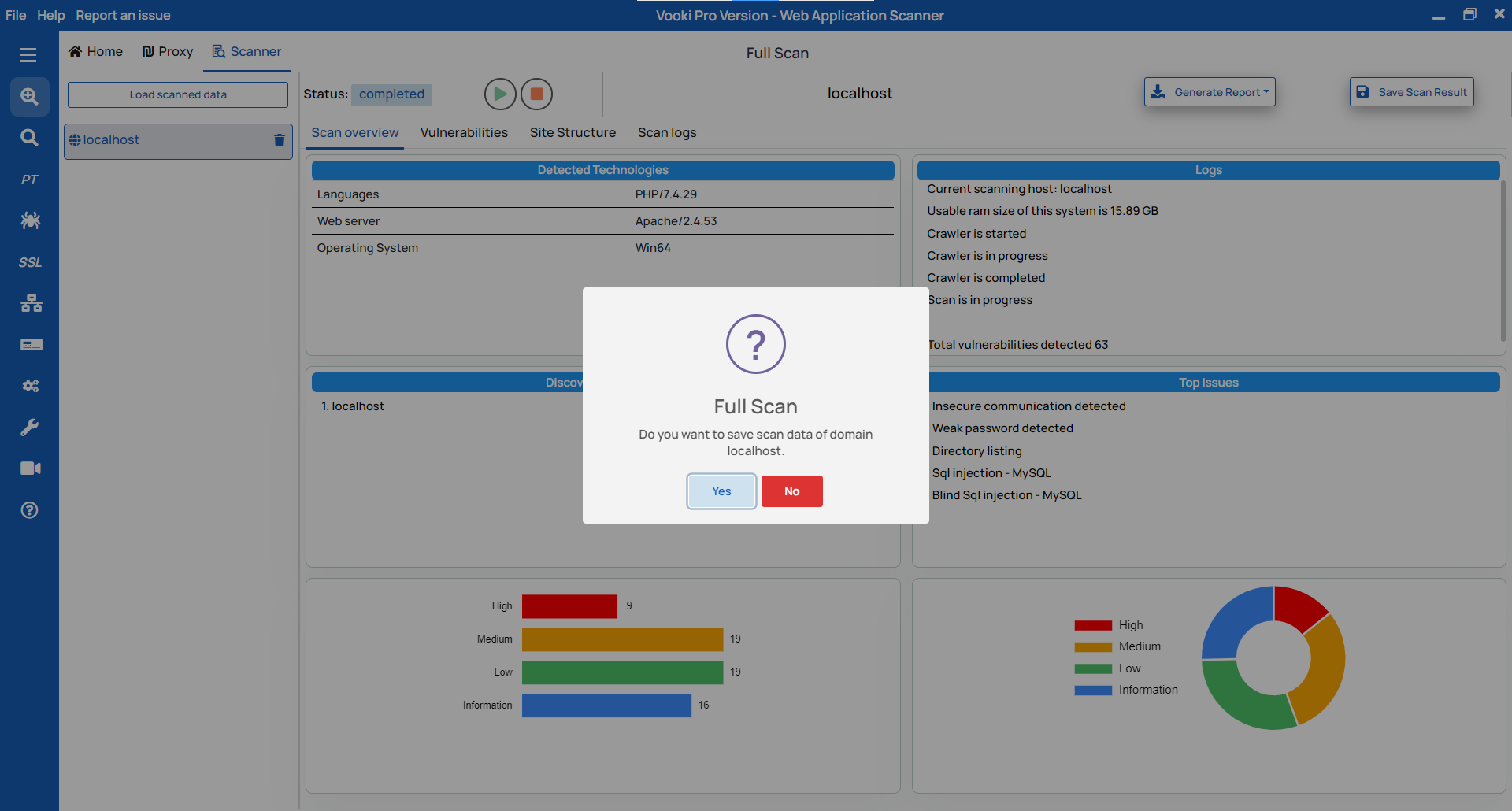
There are two options to save the scanned data externally. To save the scan data, follow these steps:
- After the completion of the scan, we get a notification to save the data. To save, click on "OK," choose the preferred location, and save the data.
- To save afterwards, right-click over the scanned host, click on "Save," and choose the preferred location.
Watch the video demo of How to use Full Scan