Basic Scan
⚠️ Legacy documentation
This article describes a feature of the earlier version of Vooki. Vooki Pro does not include this feature. The article is kept for reference only. For current guides, see the Vooki Pro documentation.
The basic scan is good for websites that do not have authentication and static websites. This basic scan includes a crawler by default. So "Basic Scan" crawls first, collects the URLs from the website, starts the scan, and ultimately provides the most reliable results.
How to use?
- Choose "Basic Scan" from the left navigation bar.
- Enter the URL to be scanned and press the Scan button.
- With the click of the scan button, you will get pop-up windows; provide input in all of them.
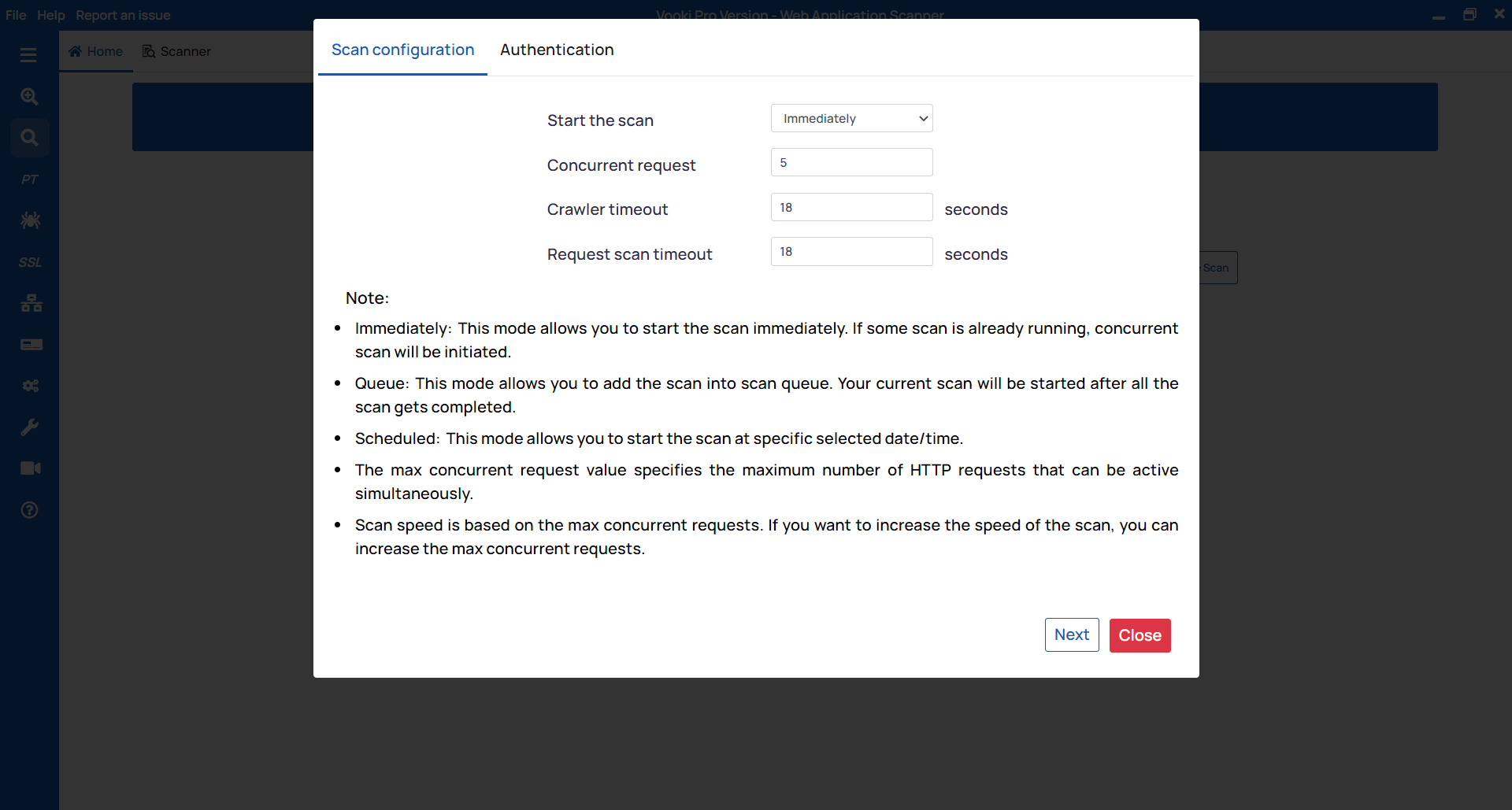
- Scan Configuration
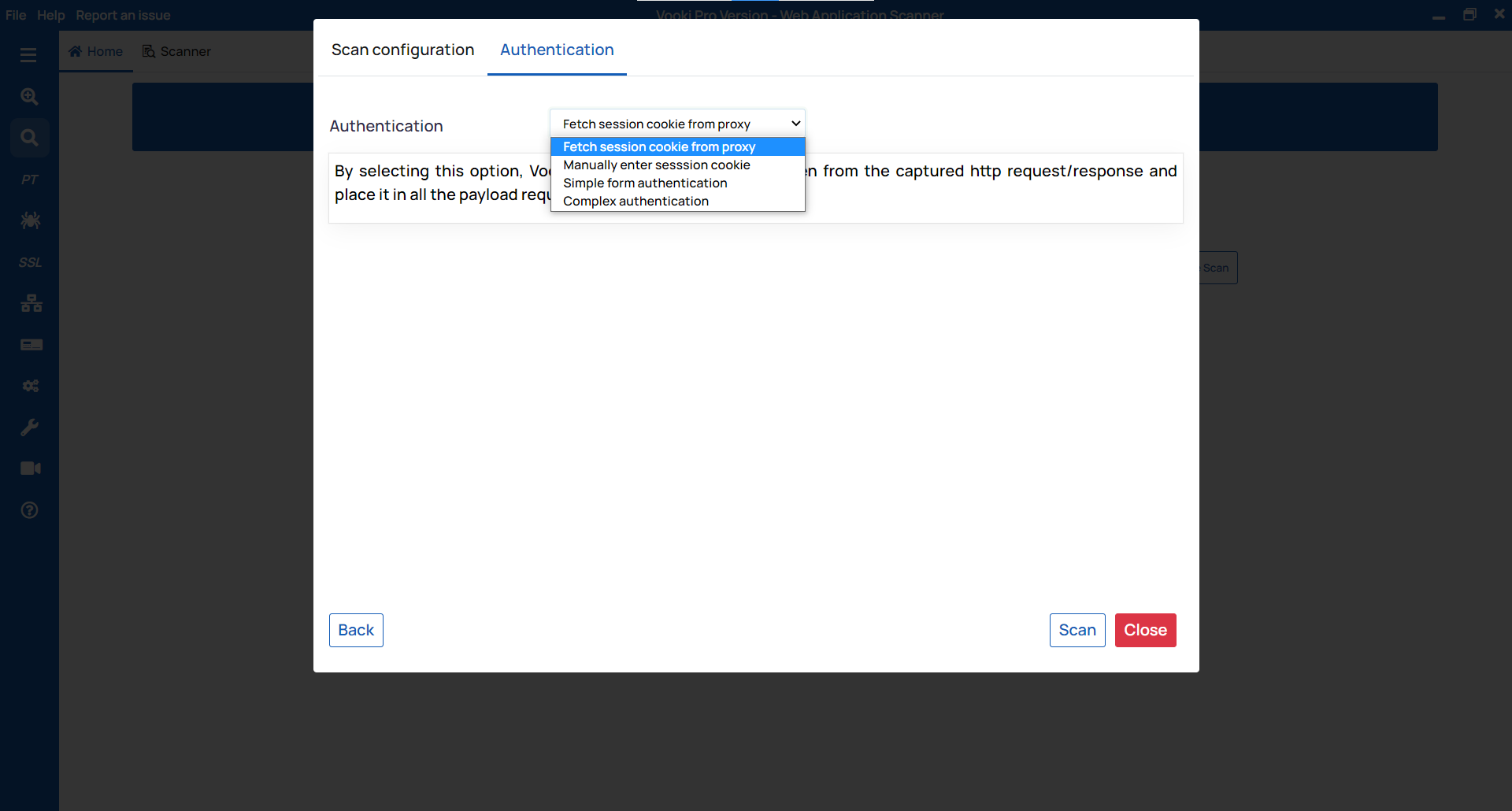
- Authentication
Scan Configuration: Concurrent Request allows you to send the number of parallel requests; Web Crawler Timeout allows you to set the timeout for the crawling request; Scan Request Timeout allows you to set the timeout for the scan.
Authentication: For authentication, we have several modes, which are as follows:
- Fetch session cookie from proxy.
- Manually enter session cookie.
- Simple form authentication.
- Complex authentication
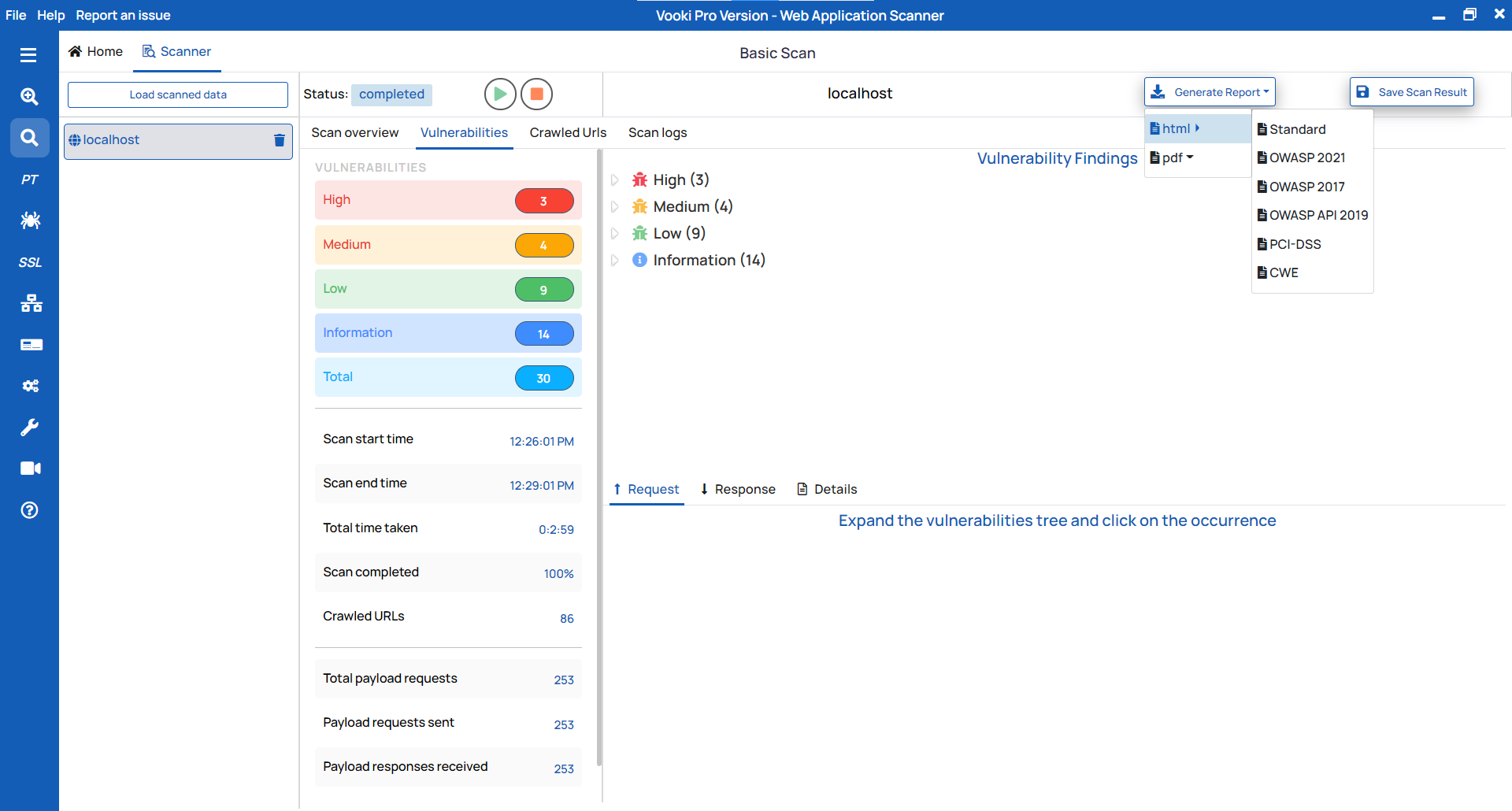
When the scan is finished, you can view the scanned app's full details in the scanner tab. You can generate the report and save the data externally.
Report Generation:
To generate the report, follow these steps:
- Click on "
Generate Report" in the scanner tab and choose the report type based on your needs. - This will generate the report in HTML/PDF format.
- Save the file in your preferred location.
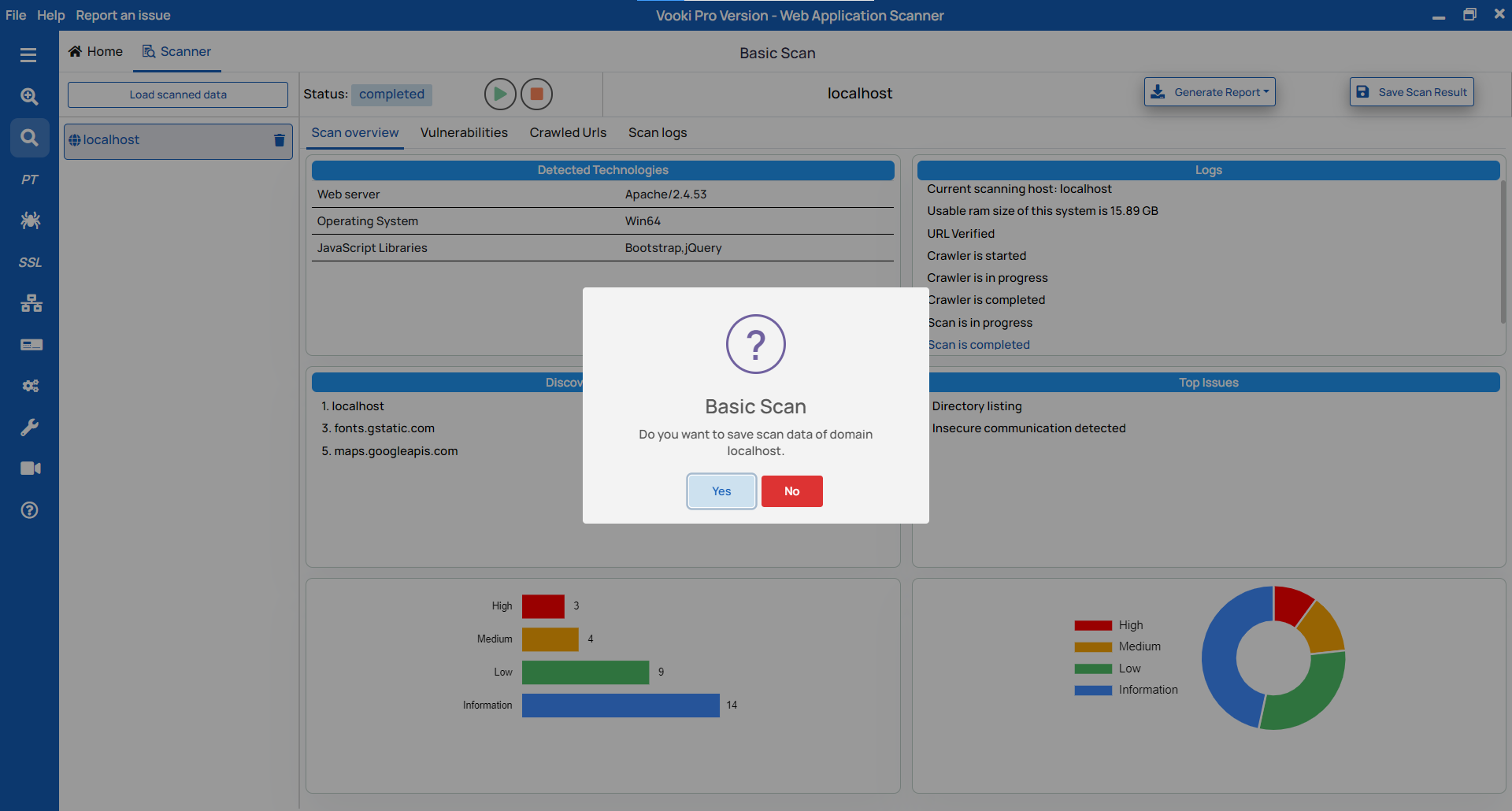
Save externally
There are two options to save the scanned data externally. To save the scan data, follow these steps:
- After the completion of the scan, we get a notification to save the data. To save, click on "OK," choose the preferred location, and save the data.
- To save afterwards, right-click over the scanned host, click on "Save," and choose the preferred location.
Watch the video demo of How to use Basic Scan